
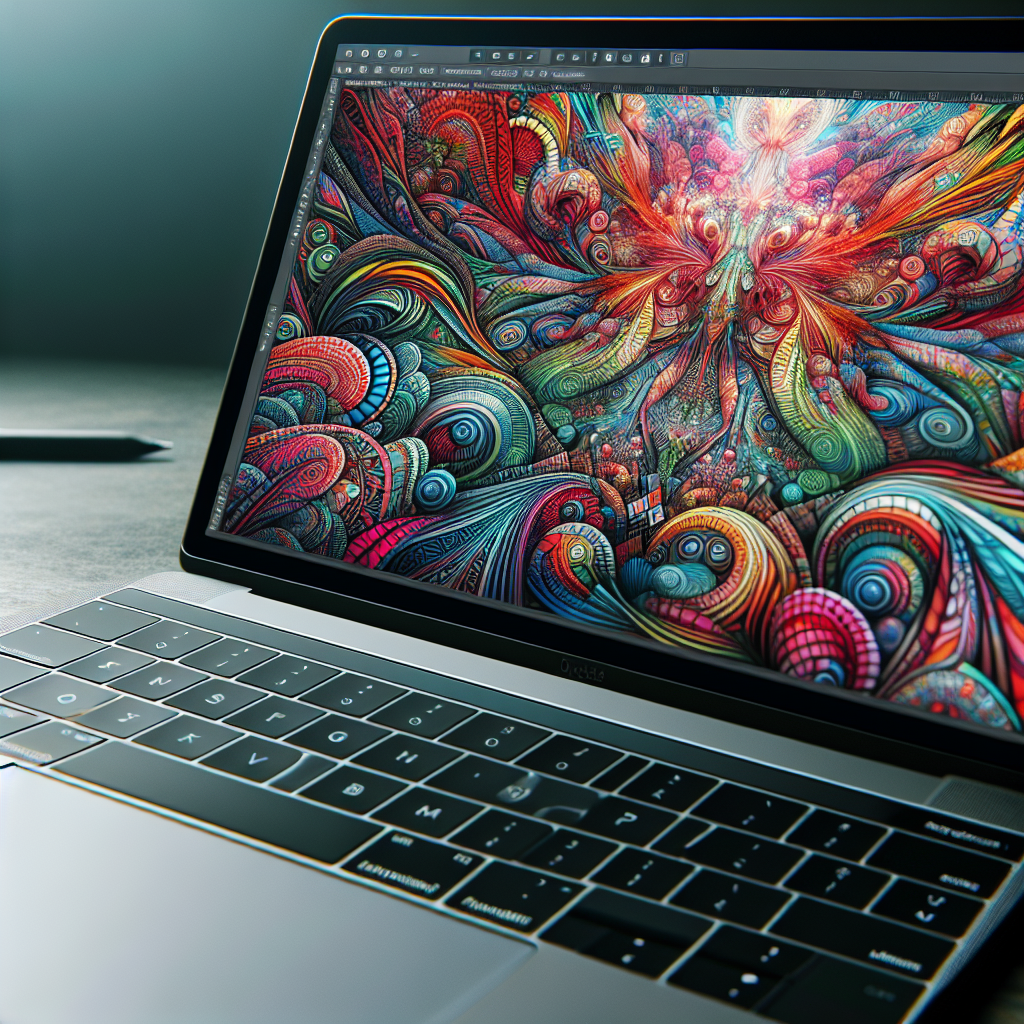
So, you’ve got a passion for graphic design and you’re looking to optimize your laptop for those intense design tasks? Well, you’re in the right place! In this article, we’ll explore some key tips and tricks to help you get the most out of your laptop when it comes to graphic design. Whether you’re a beginner or a seasoned professional, these optimizations will surely elevate your design game to the next level. So, grab a cup of coffee and let’s dive into the world of optimizing laptops for graphic design tasks!
Understanding System Requirements for Graphic Design Software
When it comes to graphic design, having a laptop that meets the necessary system requirements is crucial for optimal performance. Before diving into the different ways you can optimize your laptop for graphic design tasks, let’s first take a look at the key features needed in a laptop for graphic design.
Key features needed in a laptop for graphic design
- Processor: The processor is the brain of your laptop and plays a significant role in graphic design tasks. Look for a laptop with a fast and powerful processor, such as an Intel Core i7 or AMD Ryzen processor.
- RAM: Random Access Memory (RAM) is responsible for managing active programs and data. For graphic design, it’s recommended to have at least 16GB of RAM to handle the demanding software and multitasking involved.
- Storage: While storage capacity is essential, the type of storage also matters. Consider upgrading to a Solid State Drive (SSD) for faster data access and improved performance.
- Graphics Card: Graphic design heavily relies on visual rendering and processing, making a dedicated Graphics Processing Unit (GPU) vital. Look for laptops with dedicated GPUs, such as NVIDIA GeForce or AMD Radeon cards.
- Display: A high-resolution and color-accurate display is crucial for graphic design work. Look for laptops with at least a Full HD (1920×1080) display and good color reproduction.
System requirements of popular graphic design software
Different graphic design software have their specific system requirements. Here are the minimum and recommended specifications for some popular graphic design programs:
-
Adobe Photoshop:
- Minimum: Intel or AMD processor with 64-bit support; 2GB RAM; 2GB of available disk space; 1280×800 display.
- Recommended: Intel Core i7 or AMD Ryzen processor; 16GB RAM or more; Solid State Drive (SSD); 1920×1080 display or higher.
-
Adobe Illustrator:
- Minimum: Intel Pentium 4 or AMD Athlon 64; 2GB RAM; 2GB of available disk space; 1024×768 display.
- Recommended: Multicore Intel processor with 64-bit support; 16GB RAM or more; SSD; 1920×1080 display or higher.
-
CorelDRAW:
- Minimum: Intel Core i3/AMD Athlon 64; 2GB RAM; 2.5GB of available disk space; 1280×720 display.
- Recommended: Intel Core i7/AMD Ryzen; 8GB RAM or more; SSD; 1920×1080 display or higher.
Before investing in graphic design software, it is essential to check the specific system requirements and ensure that your laptop meets or exceeds them for smooth operation.
Upgrading Hardware for Optimal Performance
To optimize your laptop for graphic design tasks, upgrading certain hardware components can significantly enhance its performance. Let’s explore some of the key hardware upgrades you can consider.
Increasing RAM memory
One of the most effective ways to improve overall performance is by increasing your laptop’s RAM. With graphic design software becoming more resource-intensive, having ample RAM ensures smoother multitasking and faster program execution. Consider upgrading your laptop’s RAM to at least 16GB or more to meet the demands of graphic design applications.
Upgrading to a Solid State Drive
Traditional Hard Disk Drives (HDDs) can be a bottleneck when it comes to data access speeds. Upgrading to a Solid State Drive (SSD) offers significant performance improvements, as SSDs are much faster and more reliable. Installing your graphic design software and project files on an SSD will result in faster load times and quicker saving and exporting processes.
Why GPUs matter in graphic design
Graphic design heavily relies on visual rendering and processing, making a dedicated Graphics Processing Unit (GPU) crucial. A dedicated GPU provides better graphics performance and can handle complex visual effects, rendering high-resolution images, and working with 3D graphics more efficiently. When choosing a laptop for graphic design, prioritize models with dedicated GPUs, such as NVIDIA GeForce or AMD Radeon cards.
Optimizing Software Performance
Optimizing your graphic design software can significantly improve its performance and efficiency. By following some best practices, keeping your software updated, and effectively using project files, you can make the most out of your design tools.
Best practices for software installation
When installing graphic design software, there are a few best practices to keep in mind. Firstly, ensure that you have sufficient disk space to accommodate the software. Additionally, it is recommended to install the software on your laptop’s SSD, if available, for faster performance. Lastly, don’t forget to customize the installation to your requirements, selecting the necessary components and avoiding unnecessary bloatware.
Keeping design software updated
Regularly updating your design software is essential to take advantage of bug fixes, performance improvements, and new features. Graphic design software developers often release updates to address stability issues, optimize performance, and introduce new tools. Be sure to check for updates regularly and install them to keep your software running smoothly.
Using project files effectively
Organizing and managing your project files efficiently can save you valuable time and improve your workflow. Create a logical folder structure to keep your design files organized and easily accessible. Consider using a version control system or cloud storage to back up and share your project files securely. When working on large projects, it may also be helpful to break them down into smaller files to improve performance and prevent crashes.
Resolution and Display Settings
The resolution and display settings of your laptop play a crucial role in graphic design, as they directly impact your ability to visualize and work with precise details. Understanding screen resolution, adjusting settings for color accuracy, and utilizing external monitors can make a significant difference in your design workflow.
Understanding screen resolution for design
Screen resolution refers to the number of pixels displayed on a monitor horizontally and vertically. Higher resolutions provide more screen real estate, allowing you to see more content and work with greater precision. For graphic design tasks, a minimum resolution of 1920×1080 (Full HD) is recommended. However, if budget allows, consider investing in a laptop with a higher resolution display, like 2560×1440 (QHD) or 3840×2160 (4K UHD), for more detailed work.
Adjusting settings for optimal color accuracy
Color accuracy is crucial in graphic design, as it ensures that the colors you see on your screen are faithful representations of the intended colors. Calibration is essential to achieve accurate and consistent colors. Use the built-in display calibration tools on your operating system to adjust gamma, brightness, contrast, and color temperature. Additionally, consider investing in third-party color calibration tools for more precise color calibration.
Using external monitors
Working on a laptop’s small screen can be limiting, especially when designing complex projects. Connecting an external monitor to your laptop expands your screen real estate and allows for multitasking and a more immersive design experience. Look for external monitors with high resolutions and color accuracy to ensure consistency between your laptop and external display.
Color Calibration and Management
Color calibration is an essential aspect of graphic design, ensuring that the colors you see on your screen are accurate and consistent across different devices and mediums. Let’s explore what color calibration entails and how you can manage colors effectively.
What is color calibration
Color calibration refers to the process of adjusting the colors of a monitor or display to match a standard color profile. This ensures accuracy and consistency in color representation across different devices and output mediums. By calibrating your display, you can trust that the colors you see on your screen are true representations of the intended colors.
Using built-in color management tools
Most operating systems provide built-in color management tools that allow you to calibrate and manage colors. These tools guide you through the process of adjusting gamma, brightness, and color temperature to achieve accurate color reproduction. Use these tools to ensure that your laptop’s display is well-calibrated and consistent with industry standards.
Third-party color calibration tools
For more precise color calibration and management, consider investing in third-party color calibration tools and devices. These tools often come with specialized software and hardware that allow for accurate color measurement and calibration. Popular options include colorimeters, spectrophotometers, and calibration software packages. By utilizing these tools, you can achieve professional-grade color accuracy and consistency in your graphic design work.
Regular Laptop Maintenance
Performing regular maintenance on your laptop is crucial for ensuring optimal performance and preventing any issues that may disrupt your design workflow. Let’s explore some essential laptop maintenance practices.
Regularly updating system software
Keeping your laptop’s operating system and other software up to date is important for security, stability, and performance. Regularly check for updates and install them promptly. These updates often include bug fixes, performance enhancements, and security patches that can improve the overall stability and reliability of your laptop.
Cleaning up hard drive space
Over time, your laptop’s hard drive can become cluttered with unnecessary files, temporary files, and duplicates, which can slow down your system. Regularly clean up your hard drive by uninstalling unused applications, deleting temporary files, and organizing your files into logical folders. Consider using disk cleanup tools or disk space analyzer software to identify and remove large or unnecessary files.
Laptop cleaning and care
Proper cleaning and care of your laptop can extend its lifespan and keep it running smoothly. Regularly clean your laptop’s exterior, including the keyboard, touchpad, and screen, to remove dust, dirt, and fingerprints. Use a microfiber cloth and a mild cleaning solution, avoiding harsh chemicals that may damage the surfaces. Be cautious when handling liquids near your laptop to prevent accidental spills that may result in irreparable damage.
Effective Data Storage and Backup
Data storage and backup are crucial aspects of any graphic design workflow. Losing important design files can be devastating, so implementing effective storage and backup strategies is essential. Let’s explore some key considerations for data storage and backup.
Choosing the right storage solution
When it comes to storing your design files, it’s important to select the right storage solution that meets your needs in terms of capacity, reliability, and accessibility. Consider investing in external hard drives or NAS (Network Attached Storage) devices for local backups. Cloud storage solutions, such as Dropbox, Google Drive, or Adobe Creative Cloud, offer convenient and secure options for storing and syncing your files across multiple devices.
Automatic backups
Manual backups can be easily forgotten or overlooked, which is why setting up automatic backups is highly recommended. Use backup software or built-in backup features in your operating system to schedule regular backups of your design files. This way, even if you forget to perform a manual backup, you can rely on the automatic backup system to keep your files safe.
Cloud storage options
Cloud storage provides an additional layer of security and accessibility for your design files. Storing your files in the cloud allows you to access them from any device with an internet connection and provides a backup solution in case of hardware failure or loss. Explore different cloud storage providers and consider their security measures, storage capacity, and collaboration features before selecting the one that best suits your graphic design workflow.
Laptop Accessories for Graphic Design
While optimizing your laptop’s internal hardware is crucial, the right accessories can also enhance your graphic design experience. From a good mouse to drawing tablets and laptop stands, let’s explore some essential accessories for graphic designers.
Importance of a good mouse
A good mouse can drastically improve your precision and control when working on graphic design projects. Look for a mouse with high DPI (dots per inch), programmable buttons, and ergonomic design to ensure comfort and efficiency during extended design sessions. Wireless mice offer freedom of movement, while wired mice provide a more reliable connection.
Use of drawing tablets in graphic design
Drawing tablets, such as Wacom tablets, are invaluable tools for graphic designers, especially when it comes to digital illustration and fine-tuning designs. These tablets allow you to use a stylus or pen directly on the tablet’s surface, simulating a traditional drawing experience. Look for tablets with pressure sensitivity, customizable buttons, and a comfortable drawing area to suit your design needs.
Why a good laptop stand can help
Using a laptop stand can improve your ergonomics by elevating your laptop to eye level, reducing strain on your neck and back during long design sessions. Look for a sturdy and adjustable laptop stand that allows for different viewing angles. Additionally, some laptop stands offer cooling features, like built-in fans, to prevent overheating during resource-intensive design tasks.
Using Power Settings for Performance
Managing your laptop’s power settings is crucial for finding the right balance between performance and battery life. By optimizing your power settings, you can prolong battery life when you’re on the go or maximize performance when plugged in. Let’s explore the different power settings and how they affect your graphic design tasks.
Battery saving settings vs. high performance
Most laptops offer different power profiles that you can switch between to optimize battery life or performance. The battery-saving mode reduces system resources, adjusts screen brightness, and limits background processes to extend battery life. High-performance mode, on the other hand, maximizes system resources and removes any limitations to achieve the best possible performance, but it can consume more battery power. Choose the appropriate power settings based on your current needs and preferences.
Balancing battery life and performance
When working on graphic design tasks away from a power source, it’s important to balance battery life and performance. To extend battery life, reduce screen brightness, disable unnecessary background processes, and close any resource-intensive programs not in use. Utilize power-saving features like sleep mode or hibernation when taking short breaks. When plugged in, you can switch to a high-performance mode to maximize the capabilities of your laptop without worrying about battery life.
Optimal Browser and Internet Settings
The browser and internet settings on your laptop can greatly impact your efficiency and overall browsing experience while working on graphic design tasks. Optimizing these settings will ensure faster downloads/uploads and safe browsing habits.
Choosing the right browser
Different web browsers offer varying levels of performance, customization, and compatibility with design-related websites and applications. Popular options include Google Chrome, Mozilla Firefox, and Safari. Consider experimenting with different browsers to find the one that suits your needs best, focusing on speed, reliability, and compatibility with web-based design tools.
Internet settings for faster downloads/uploads
To optimize your internet speed for faster downloads and uploads, consider adjusting a few settings. Firstly, check your internet connection and ensure that you have a stable and high-speed connection. Next, disable any unnecessary browser extensions or plugins that may slow down your browsing experience. Finally, prioritize downloads/uploads by adjusting the bandwidth allocation in your internet settings or using download manager software.
Safe browsing habits to avoid malware
Protecting your laptop from malware is crucial for maintaining a secure and reliable graphic design workflow. Practice safe browsing habits, such as avoiding suspicious websites, downloading files from trusted sources only, and being cautious of phishing attempts. Additionally, regularly update your browser and enable security features like pop-up blockers, antivirus/malware software, and browser extensions that enhance your online security.
In conclusion, optimizing your laptop for graphic design tasks involves ensuring your laptop meets the necessary system requirements, upgrading hardware components for better performance, optimizing software settings, and implementing good practices for data storage, color calibration, and regular maintenance. By following these guidelines and leveraging the right accessories, you can maximize your productivity and creativity as a graphic designer, while maintaining a smooth and efficient workflow. Remember to adapt these recommendations based on your specific needs and budget, and always stay informed about the latest advancements in hardware and software to stay ahead in the world of graphic design.